Guide: How to Use the CoinGecko Token Update Form
Last updated: October 2, 2026
Keeping your project's page up to date is crucial for your community. You can easily submit updates for your token details, such as social media links, contract addresses, or rebranding, directly through our self-serve portal.
Important Verification Notice
Every update request must be accompanied by a strict verification process, as detailed in our [Verification Guide for Listing/Update Requests on CoinGecko]. Failure to provide valid public announcement links and proof of ownership may result in your request being rejected.
Step-by-Step Submission Guide
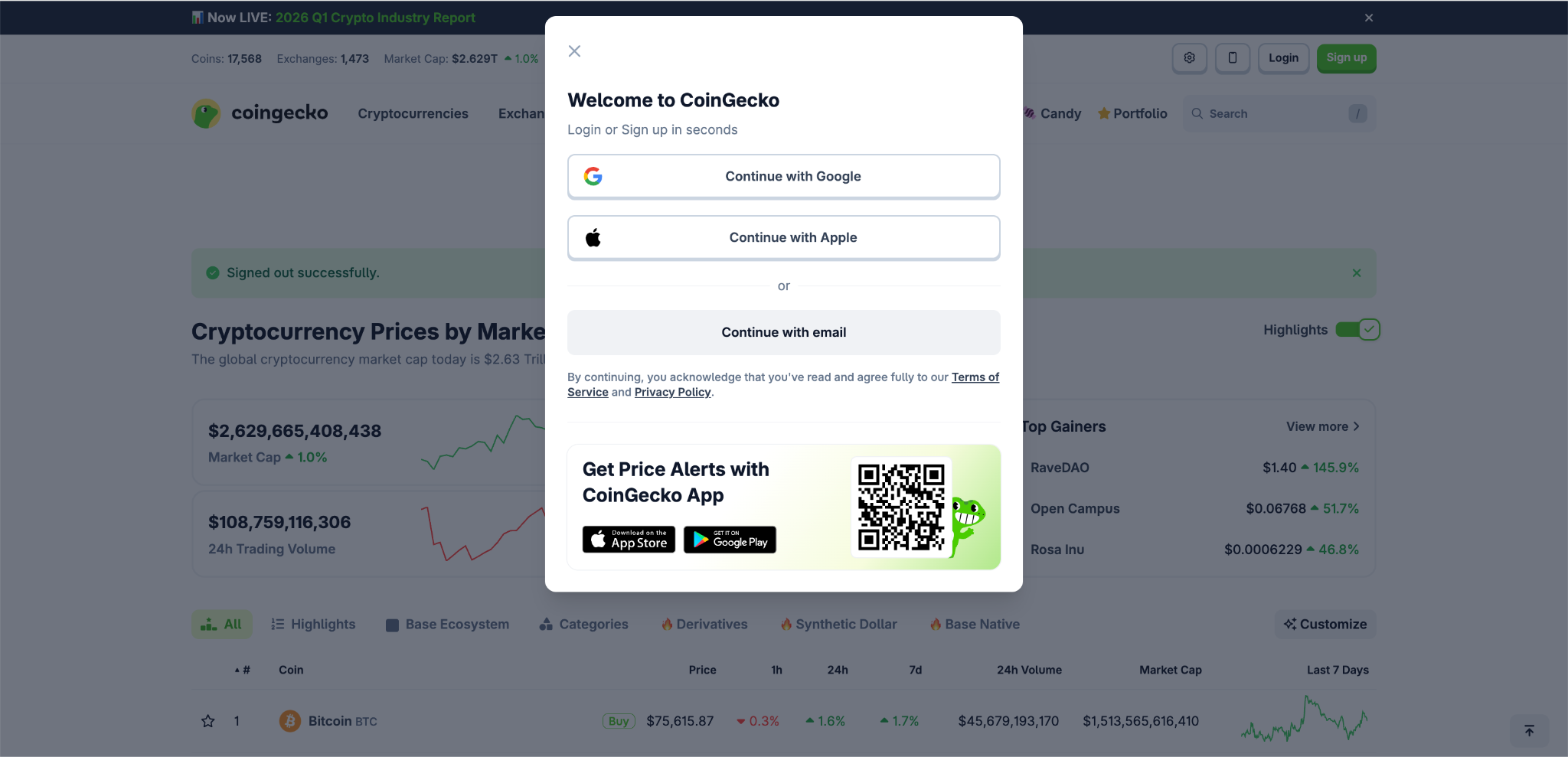
- Log In: Log in to your CoinGecko account. If you do not have an account, you will need to sign up first. You can read this article, [How do I sign up for a CoinGecko account?], for further information.
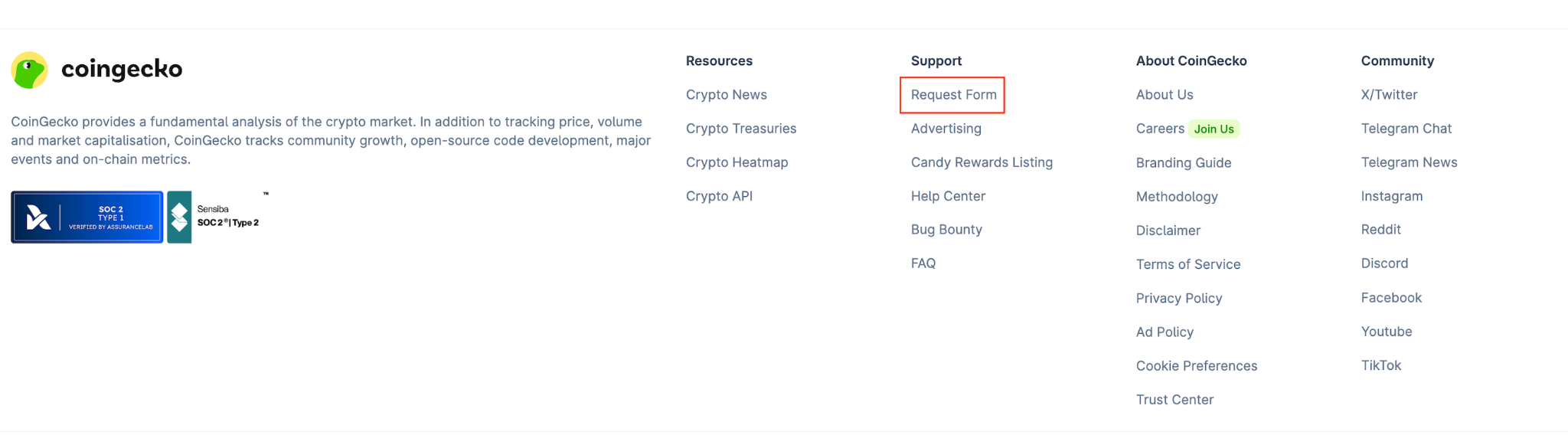
- Access the Form: Scroll to the bottom of the CoinGecko homepage and click on Request Form, or visit the Partners Platform directly.
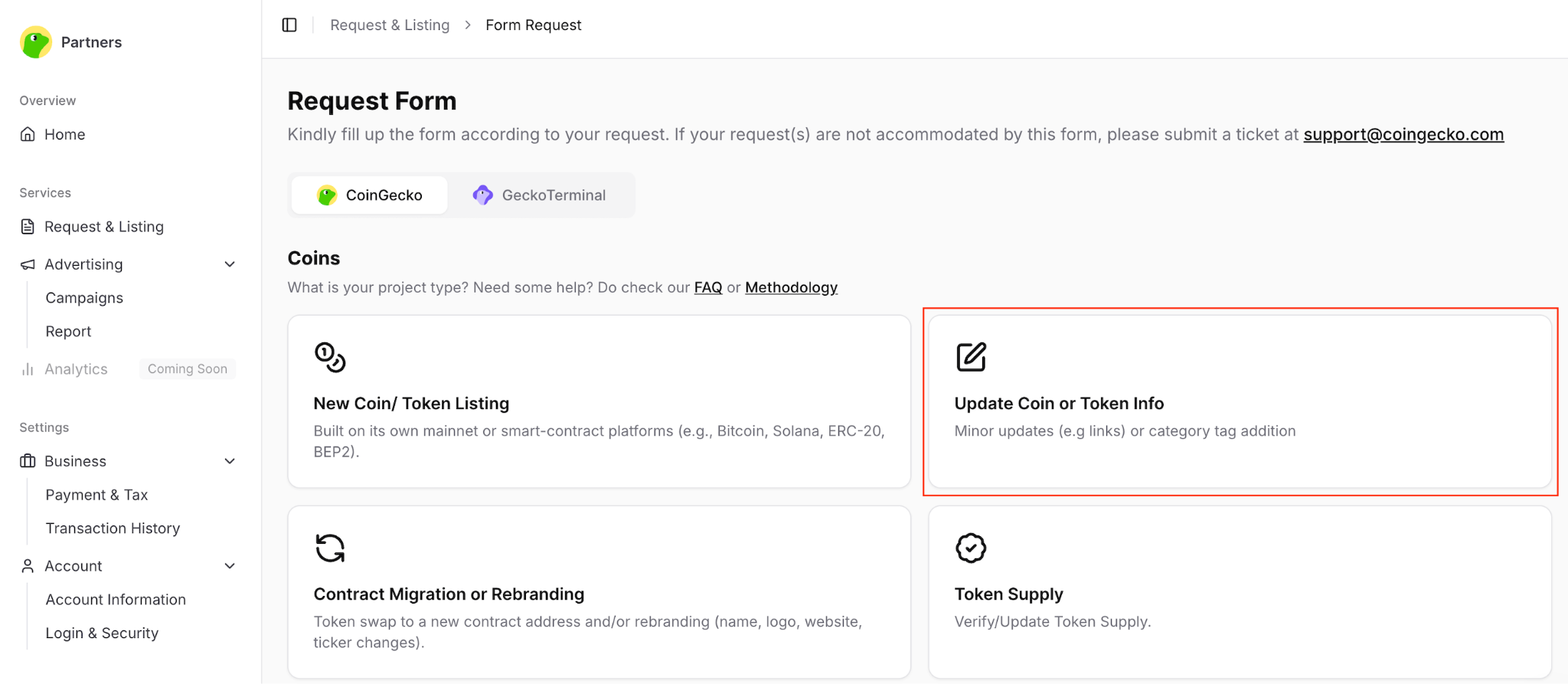
- Select the Request Type: Inside the Request & Listing tab, select Update Coin or Token Info.
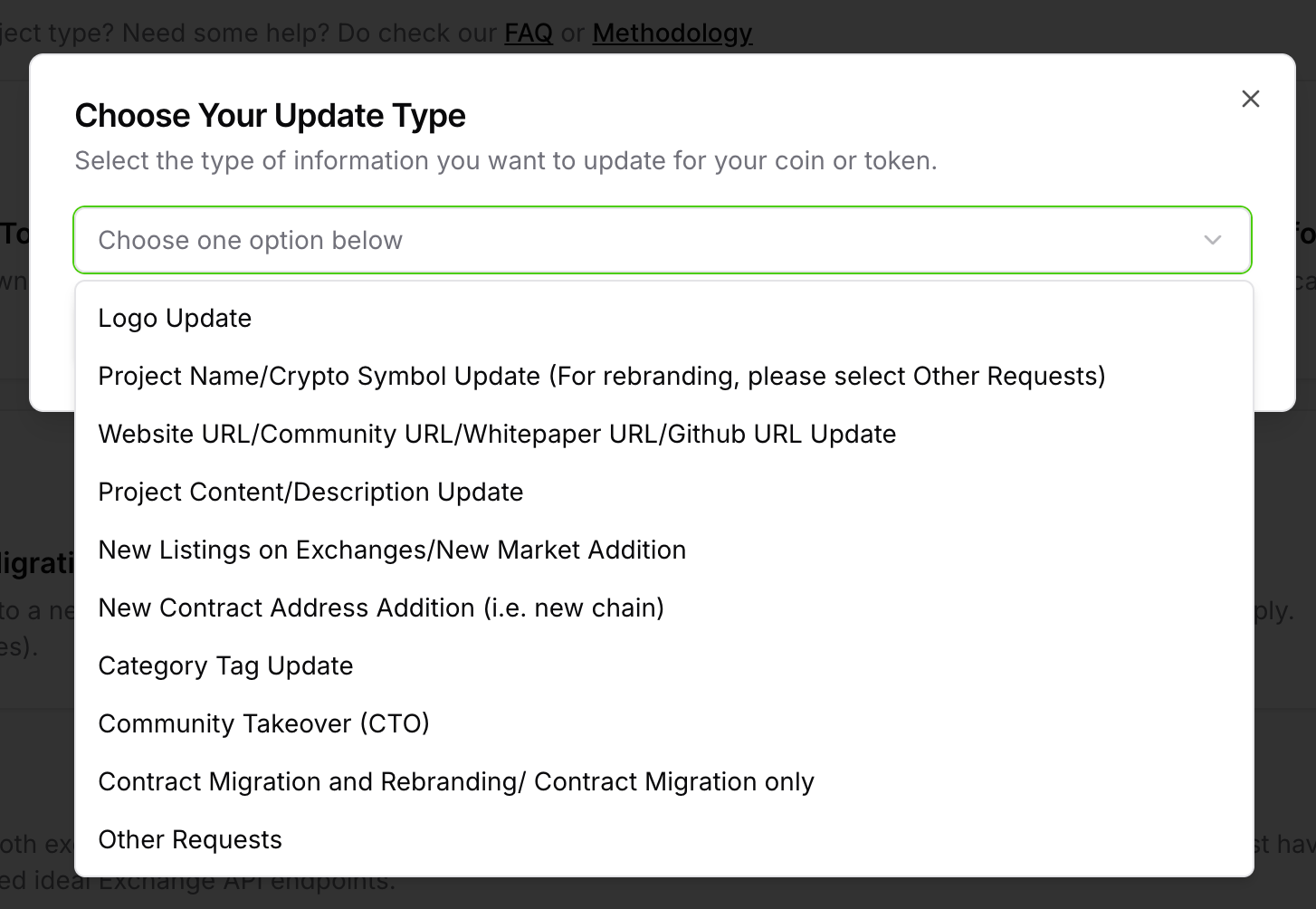
- Choose Your Update Category: Select the specific update category from the dropdown menu. Ensure you provide relevant public announcement links to verify your requested changes.
- Fill in the Required Fields: To speed up processing, only fill in the sections relevant to the update you are requesting. Use the table below as a guide:
| Form Section to Complete | What You Need to Update |
| Basic Information | Token name, symbol, description, website, or whitepaper |
| Exchange Trading Information | New exchange listings |
| Block Explorer links & Contract Information | New contract address |
| Community Information | New or updated social media links |
| Developer Information | Source code repositories (GitHub, etc.) |
| Attachments (Upload your image file here) | Project logo |
- Provide Additional Information: In the Additional Information section, feel free to share any extra context or details that would be helpful for the CoinGecko evaluation team.
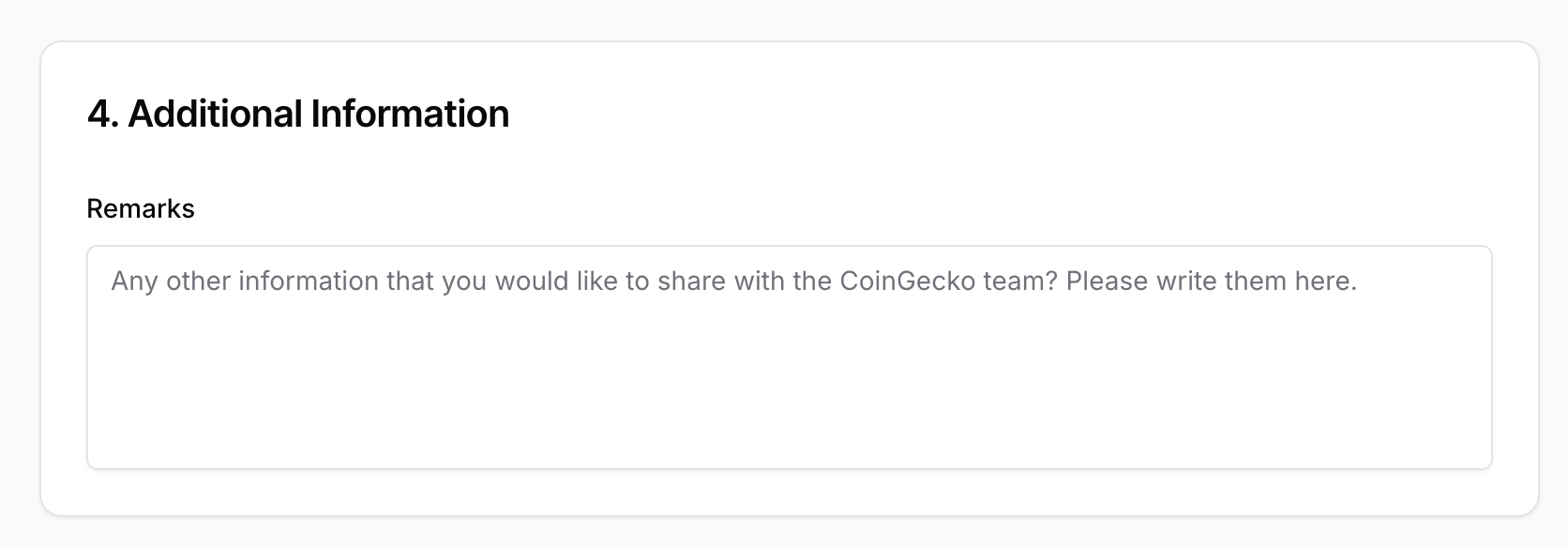
-
Choose Your Review Speed: Before submitting, select how fast you want your application reviewed:
- Fast Pass ($200 per request): Expedites your review to within 24 hours. (For more details, see [What does the CoinGecko Fast Pass feature cover?] and [How to Purchase CoinGecko Fast Pass])
- Regular Pass: Standard review process, which takes up to 5 days.
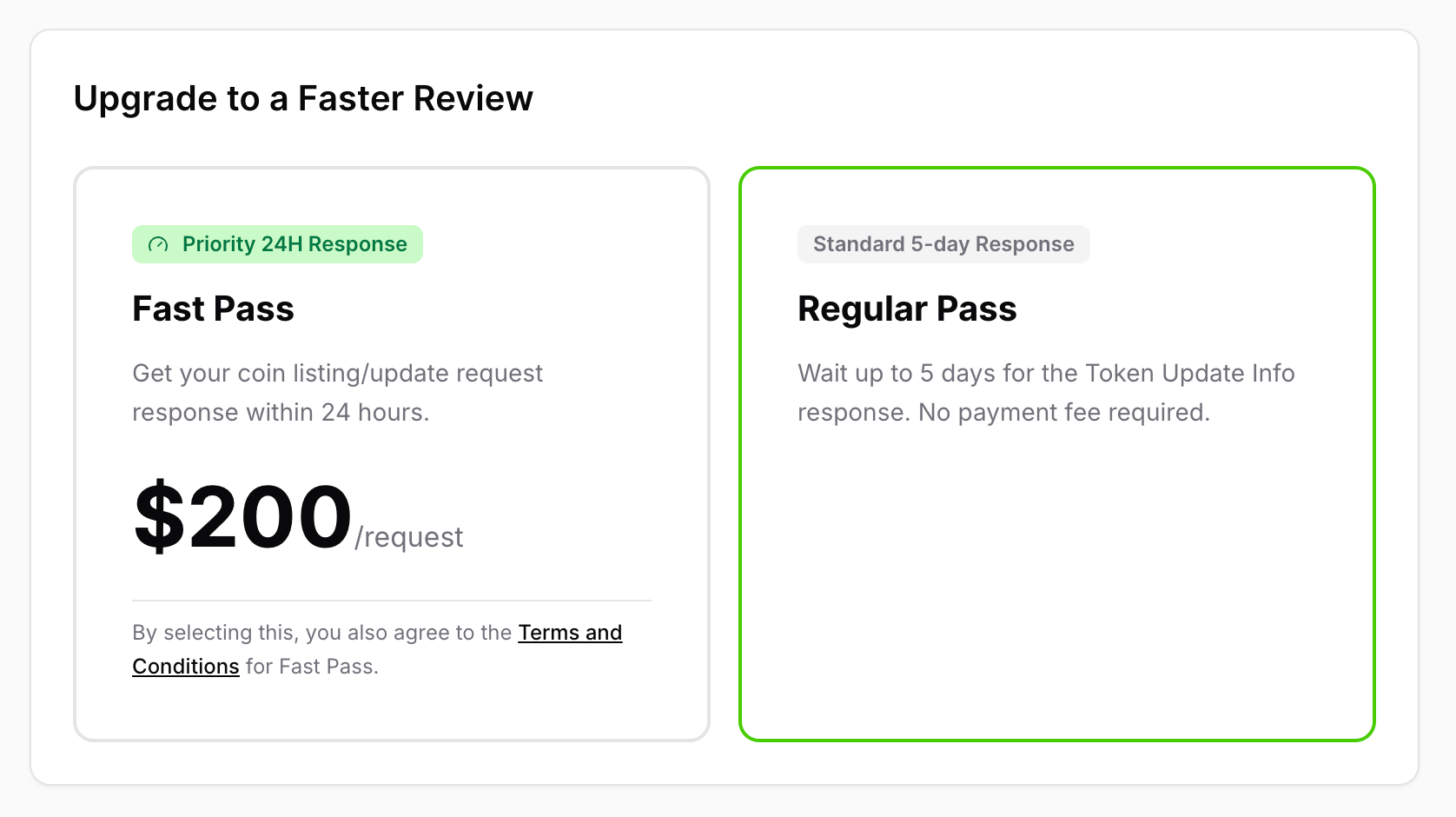
- Submit Your Request: Acknowledge the terms and conditions, complete the captcha verification, and click the Submit Request button.
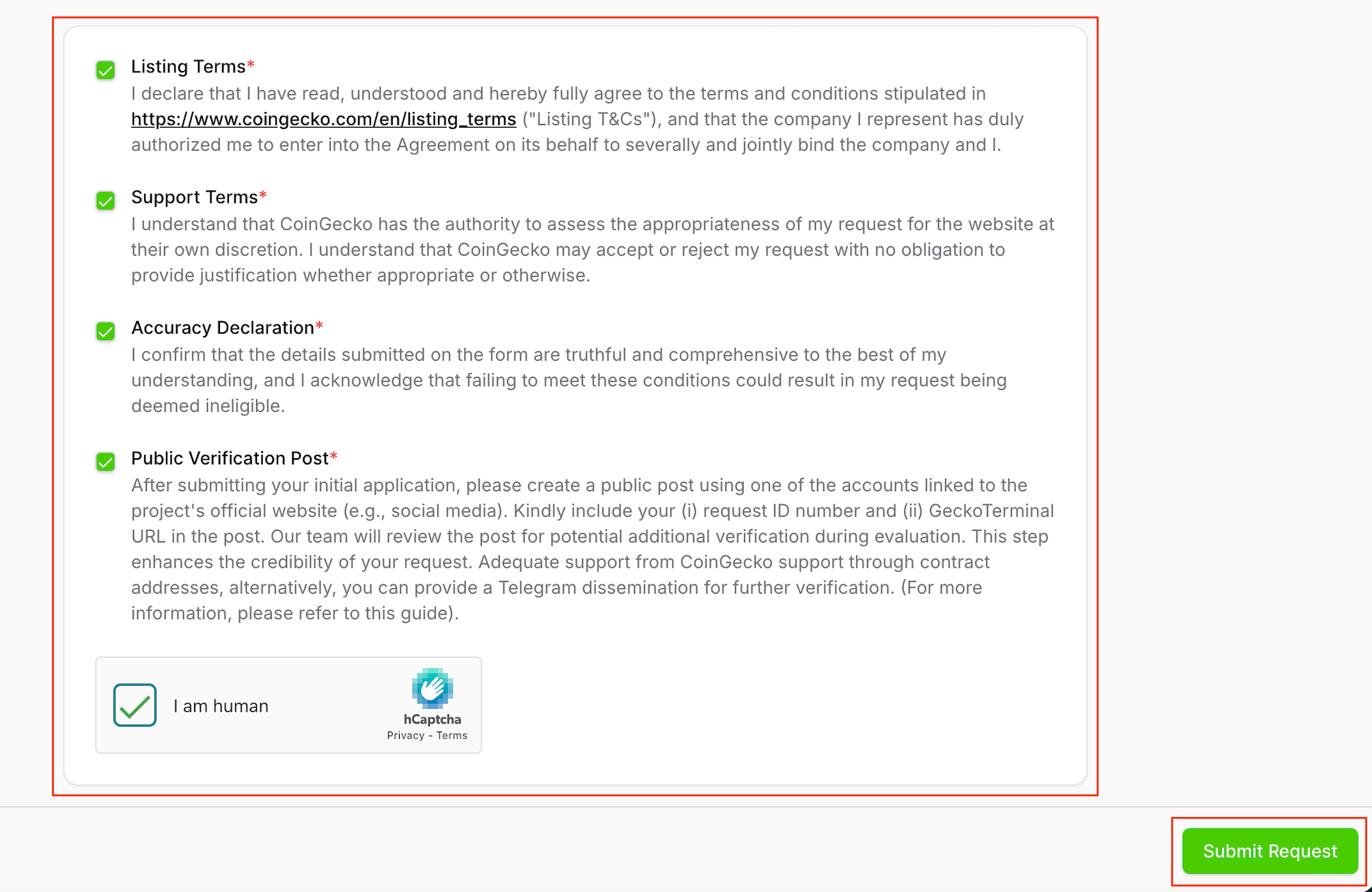
Tracking Your Application
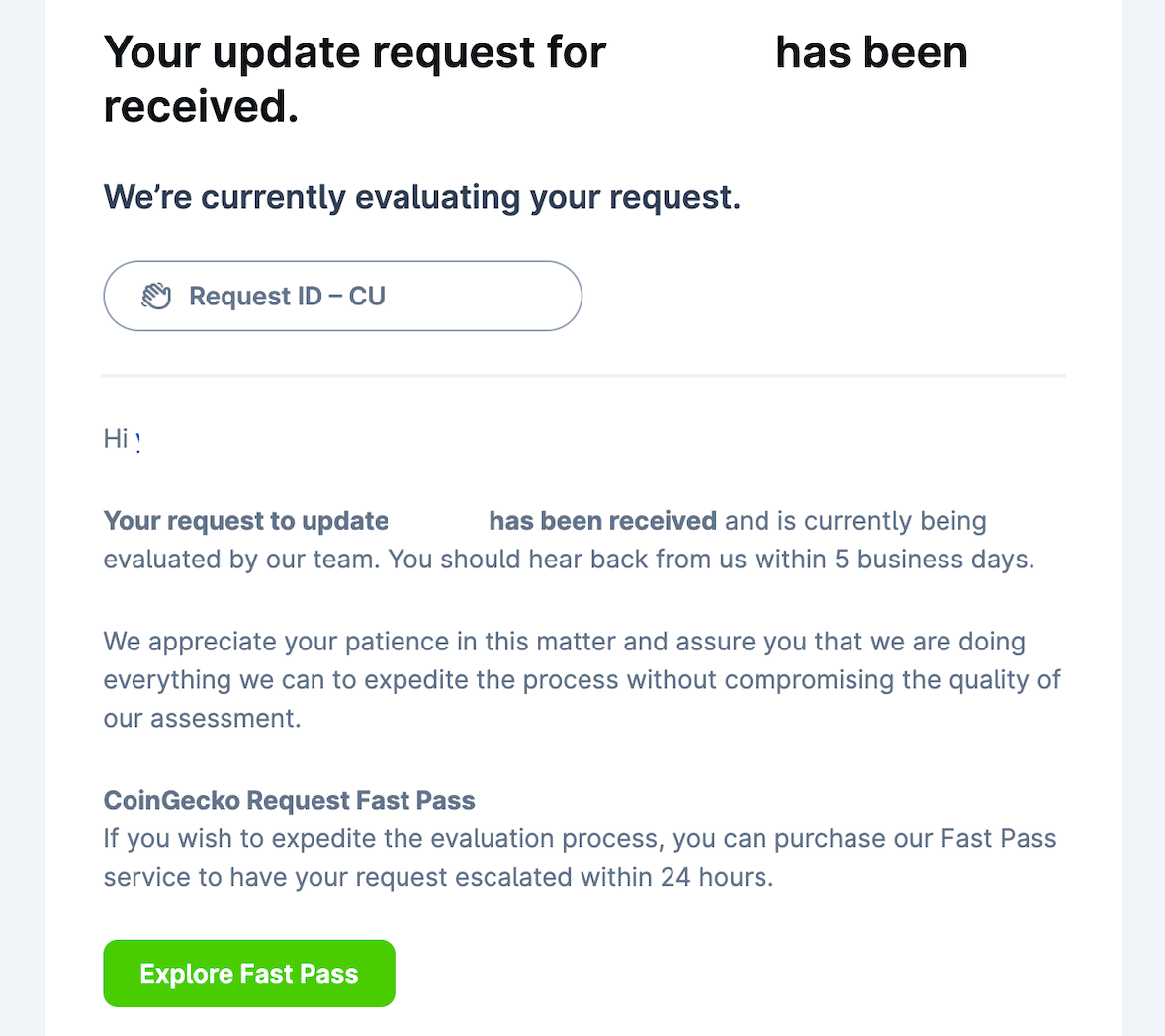
Upon successful submission, a success message will display on your screen, and you will receive a confirmation email containing a unique Request ID (e.g., CUXXXXX).
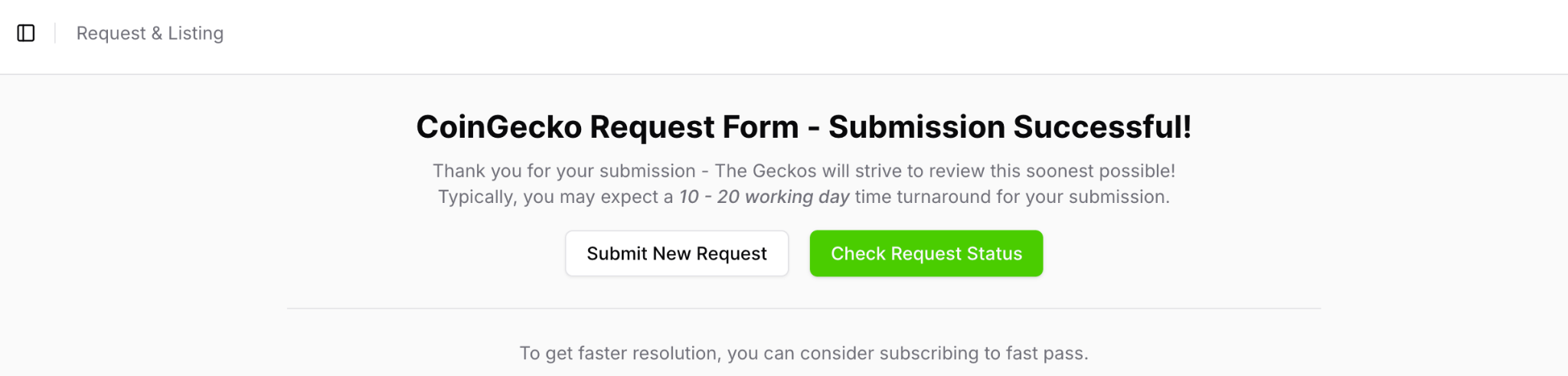
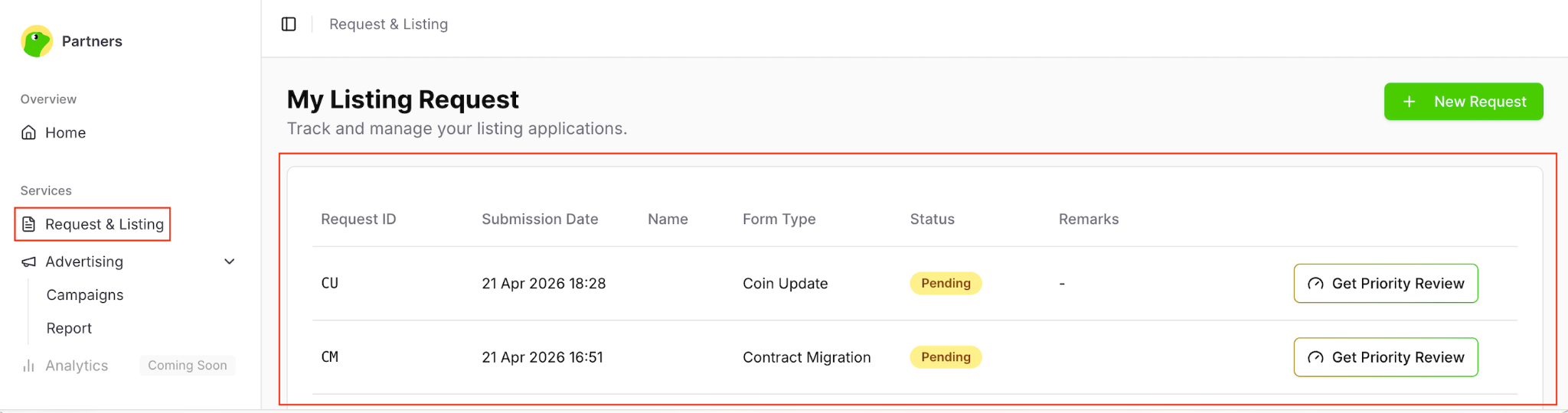
You can monitor the real-time status of your request at any time by navigating to the Request & Listing tab in your Partners Platform. Our operations team will process your application based on the pass tier you selected.
Need Help?
If you have further questions or encounter issues during the update process, please submit a ticket at our Support Center.