Team Access for API Plans FAQ
Last updated: October 27, 2026
We are excited to announce that we now support shared access for the Developer Dashboard. You can now invite team members to your workspace, allowing them to view historical usage and manage API keys alongside you.
To get started, log in with your main subscription account and visit the Access tab: https://www.coingecko.com/en/developers/dashboard#access
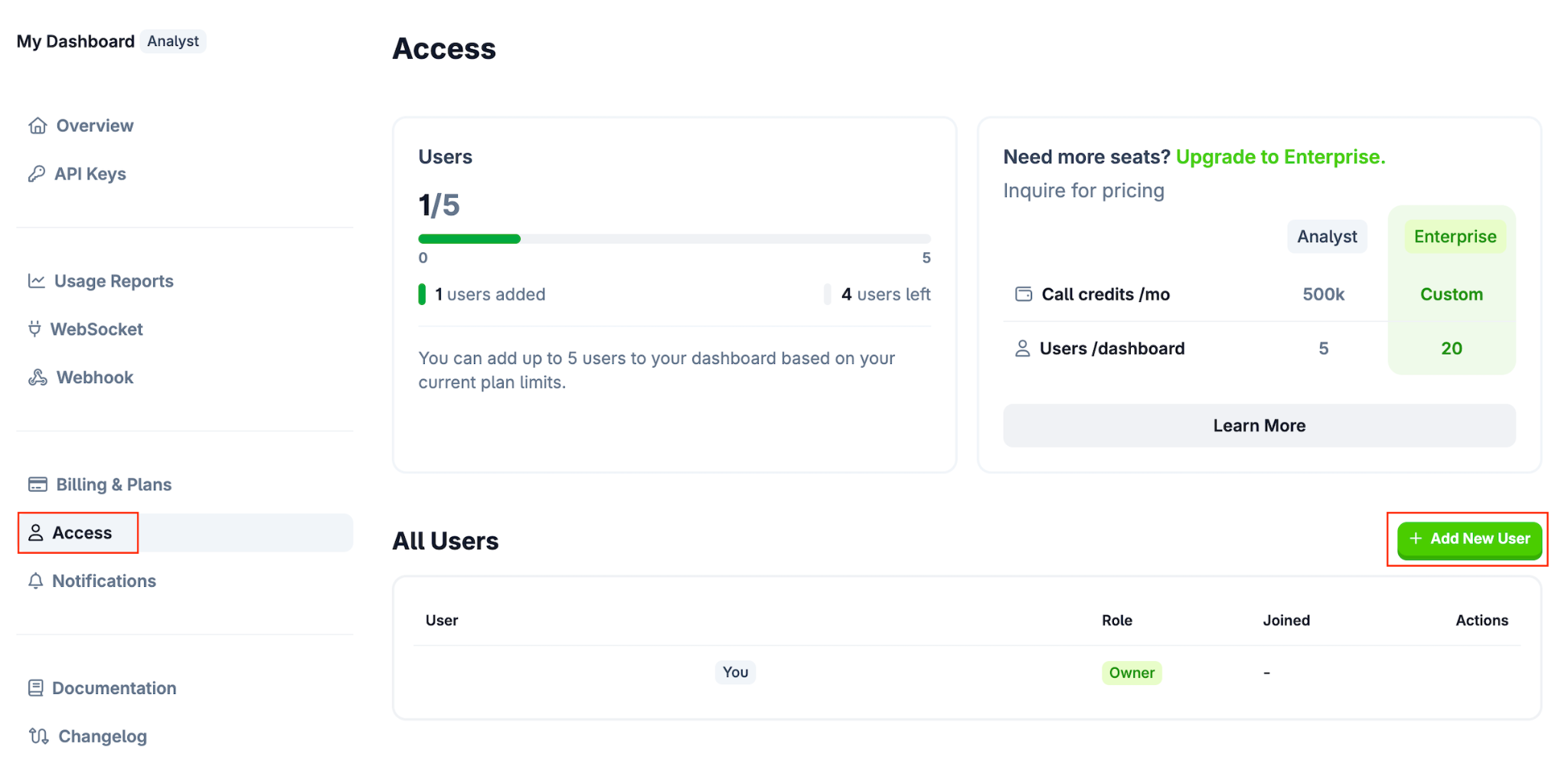
For the detailed guide on how to manage team access, please refer to this article: How to Manage Team Access on Your API Dashboard
FAQ
General Access & Limits
Can I manage multiple team dashboards under one API account?
Currently, each API subscription supports a single Team Dashboard. All invited members will have access to this shared workspace. You cannot create distinct sub-teams or multiple dashboards under a single API plan.
Is there a limit to how many members I can invite?
Yes, each plan has a maximum number of users allowed per team. Please note that these limits include the account owner:
Demo / Basic: 2 Users Max (Owner + 1 Teammate)
Analyst+: 5 Users Max (Owner + 4 Teammates)
Enterprise: 20 Users Max (Owner + 19 Teammates)
If you require more seats than your current tier allows, you will need to upgrade your plan.
Is there a limit to how many teams I can join?
Yes. A single user can join a maximum of 5 external teams as a Collaborator. This limit applies across all plan tiers and does not count the team dashboard that you own yourself.
Do my team members need their own paid API plan to join?
No. Team members can join your dashboard as "Collaborators" without having their own active API subscription. They only need a free CoinGecko user account to access the dashboard once invited.
Managing Members & Ownership
How do I add or remove team members? All member management must be done by the Account Owner via the "Access" tab in the Developer Dashboard.
Note: Our customer support team cannot manually add or remove members on your behalf for security reasons. Please manage this directly within your dashboard.
Can I transfer ownership of the dashboard to another team member?
No. The "Owner" role is permanently tied to the specific CoinGecko account that holds the active API subscription. Because of this, ownership cannot be directly transferred to a user with a "Collaborator" role. However, depending on your situation, there are a few workarounds:
Option 1: Change the Account's Email Address
If your team still has access to the original owner's account (e.g., [email protected]) and you simply want to hand it over by updating the login email (e.g., to [email protected]), you can do so by following our guide: [Can I change my CoinGecko login email address?].
Important Constraint: The target email address must not already be associated with an existing CoinGecko account. If it is, you must delete that secondary account before you can transfer the email over. For instructions on how to do this, please refer to: [How can I delete my account on CoinGecko?].
Option 2: Handling Inaccessible Accounts
If you no longer have access to the original account and cannot perform a standard email change, please proceed based on your subscription tier:
Self-Serve Users: You will need to log in to the new account, subscribe to a new API plan, and then cancel the active subscription on the old account.
Managed Accounts: Please reach out directly to your dedicated Account Manager, and they will safely assist you with the account transition.
How will my team members know I invited them?
If they already have a CoinGecko account: They will receive a welcome email with a direct link to access the dashboard.
If they do NOT have a CoinGecko account: They will receive an email prompting them to sign up for a free account. Once registered, they can access the dashboard.
As the Owner: You will receive a confirmation email once a new member is successfully added.
Subscription Changes
What happens to my team if I downgrade my plan?
If you downgrade to a plan with a lower member limit than your current team size, the system will automatically remove excess members to comply with the new limit.
How removal works: Members are removed in reverse chronological order. This means the most recently added members will be removed first until your team size matches the new plan's limit.
What happens if I cancel my plan or my subscription expires?
If your plan is deactivated:
Access to the dashboard is revoked for all members, including the Owner.
If you resubscribe to a new API plan in the future, a brand new dashboard will be created.
Important: Previous team settings are not saved. You will need to manually re-invite your team members to the new dashboard.
For the step-by-step guide on how to manage team access, please refer to this article: How to Manage Team Access on Your API Dashboard
If you have additional questions, drop a ticket here for our team to assist you further.