How to Check Your API Usage
Last updated: October 2, 2026
This guide provides step-by-step instructions on how to view and track your CoinGecko API usage, including your total calls, filtered reports, and specific logs for the REST API and WebSocket.
Checking Your Usage
To view your API usage details, please follow these steps:
- Log In: Log in to your CoinGecko account.
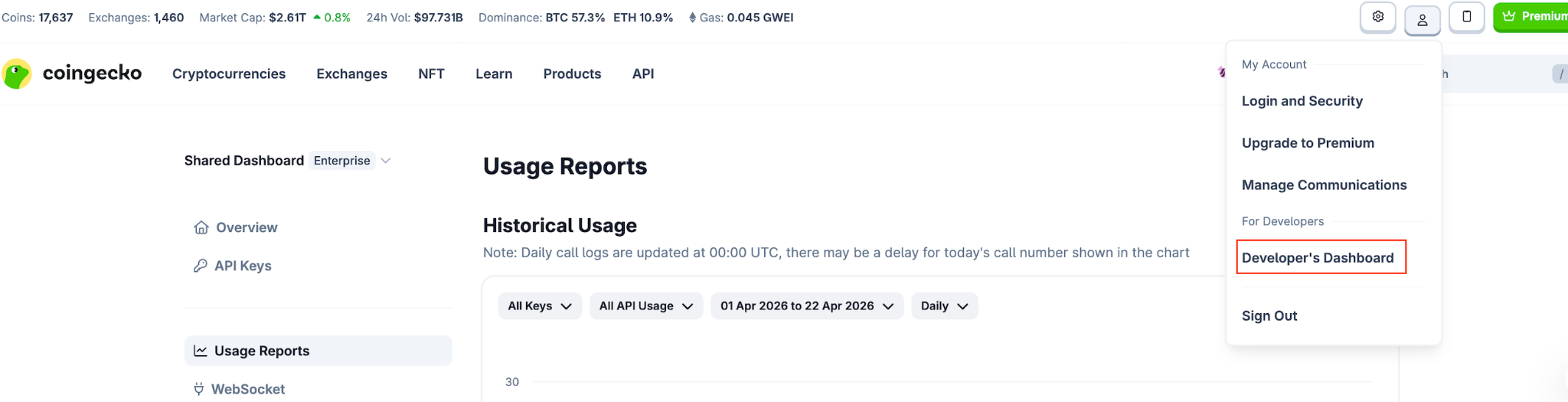
- Access the Dashboard: Hover your cursor over the top right corner of the page and click on Developer’s Dashboard.
- Navigate to Reports: Once inside the Developer’s Dashboard, click on the Usage Reports tab.
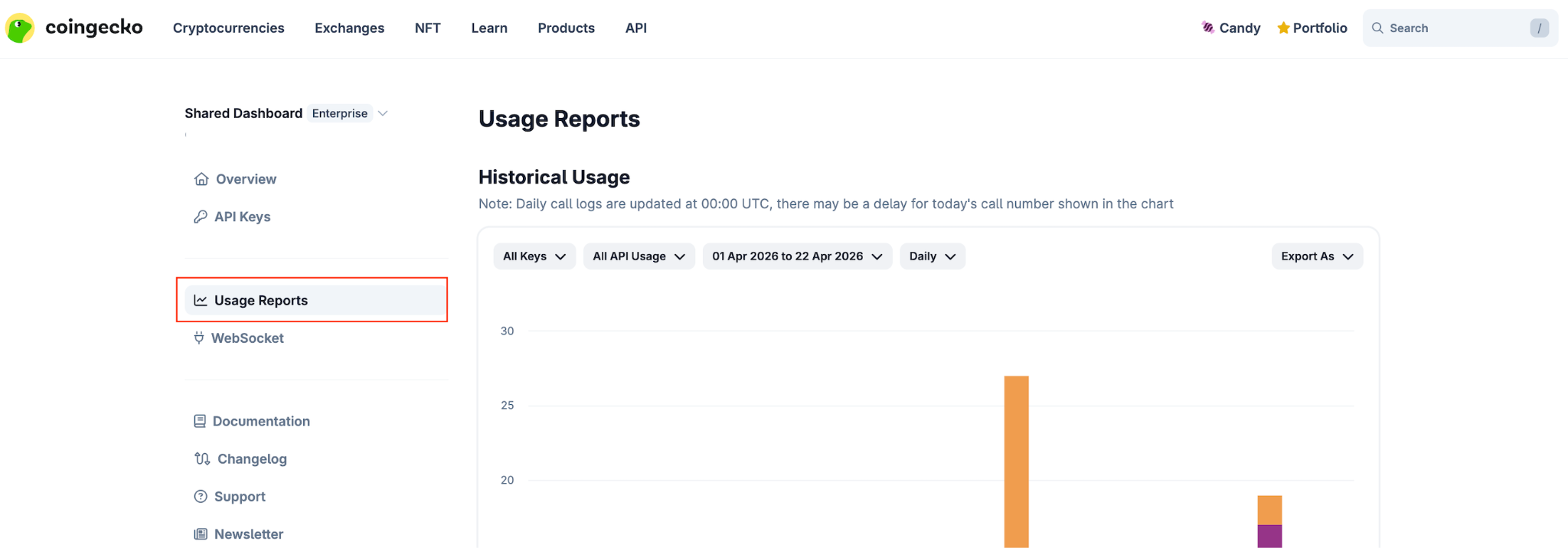
- View Total Calls: Here, you will find a summary detailing your total API calls made.
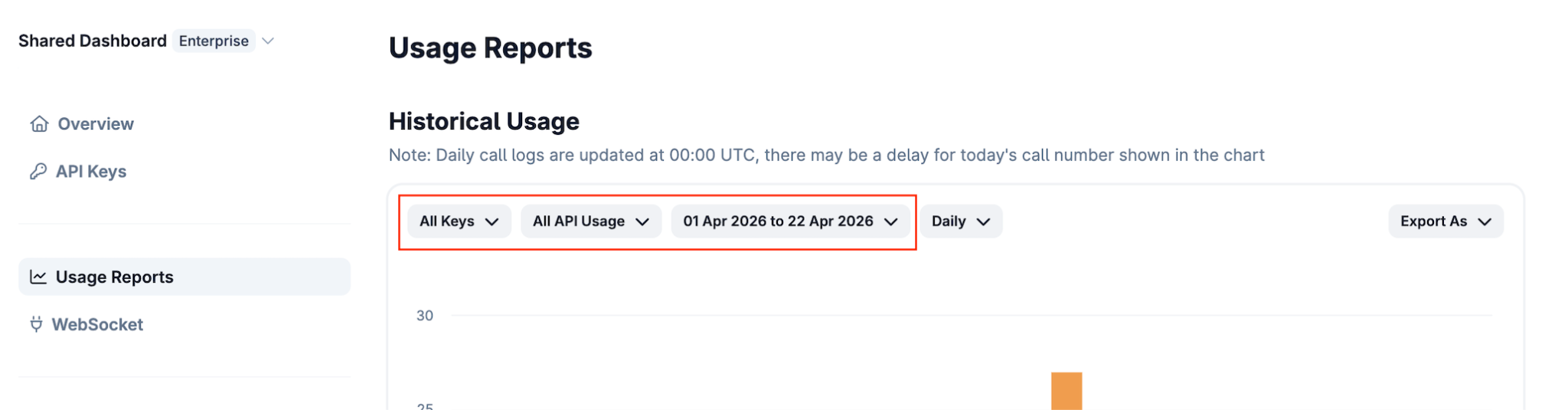
- Filter Your Data: You can customize the displayed data by filtering it by specific API key, type of API usage, and time period.
-
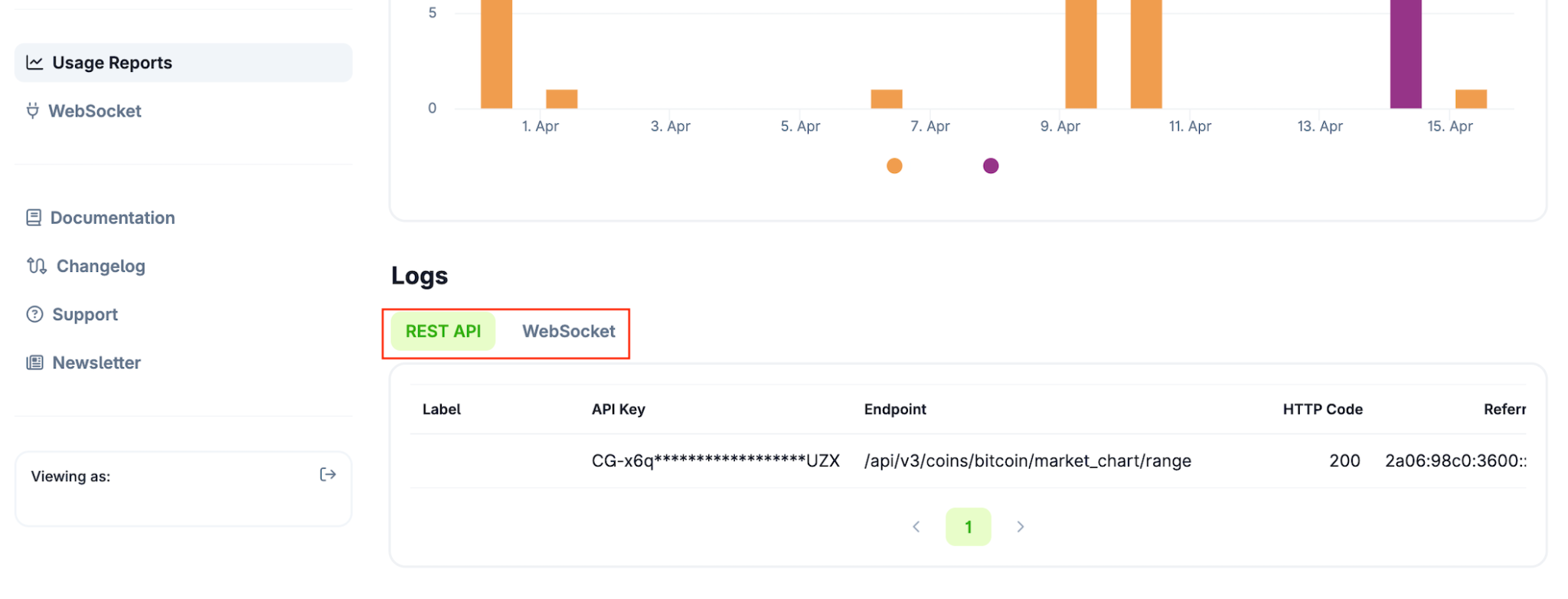
Review Usage Logs: Scroll to the bottom of the page to view the detailed usage log, which is conveniently categorized into REST API and WebSocket usage.
-
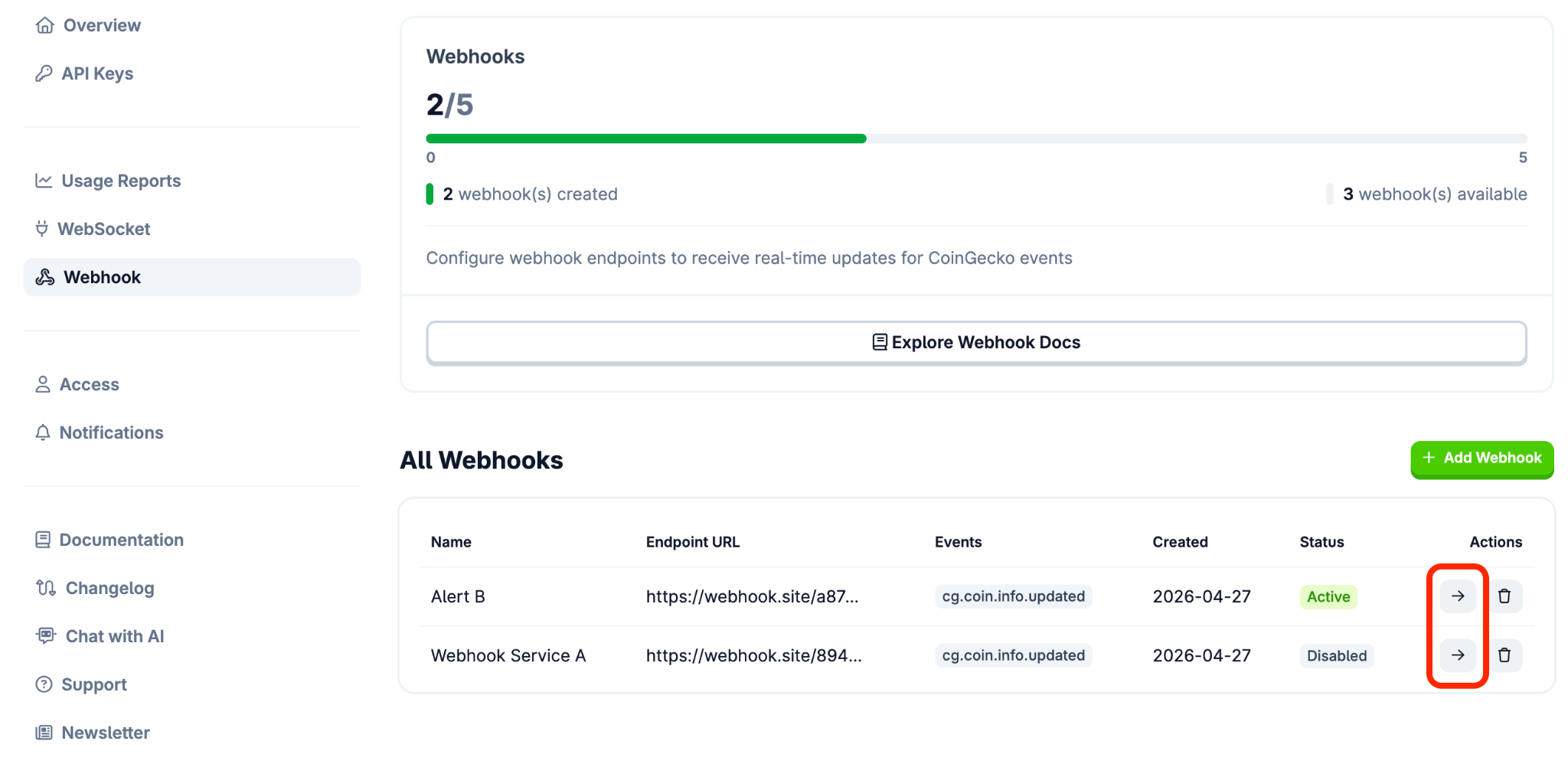
Review Usage Logs for Webhook: On the Webhook page in Developer Dashboard, click on the '->' arrow button to view the latest logs of a specific Webhook.
Tracking Individual API Key Usage
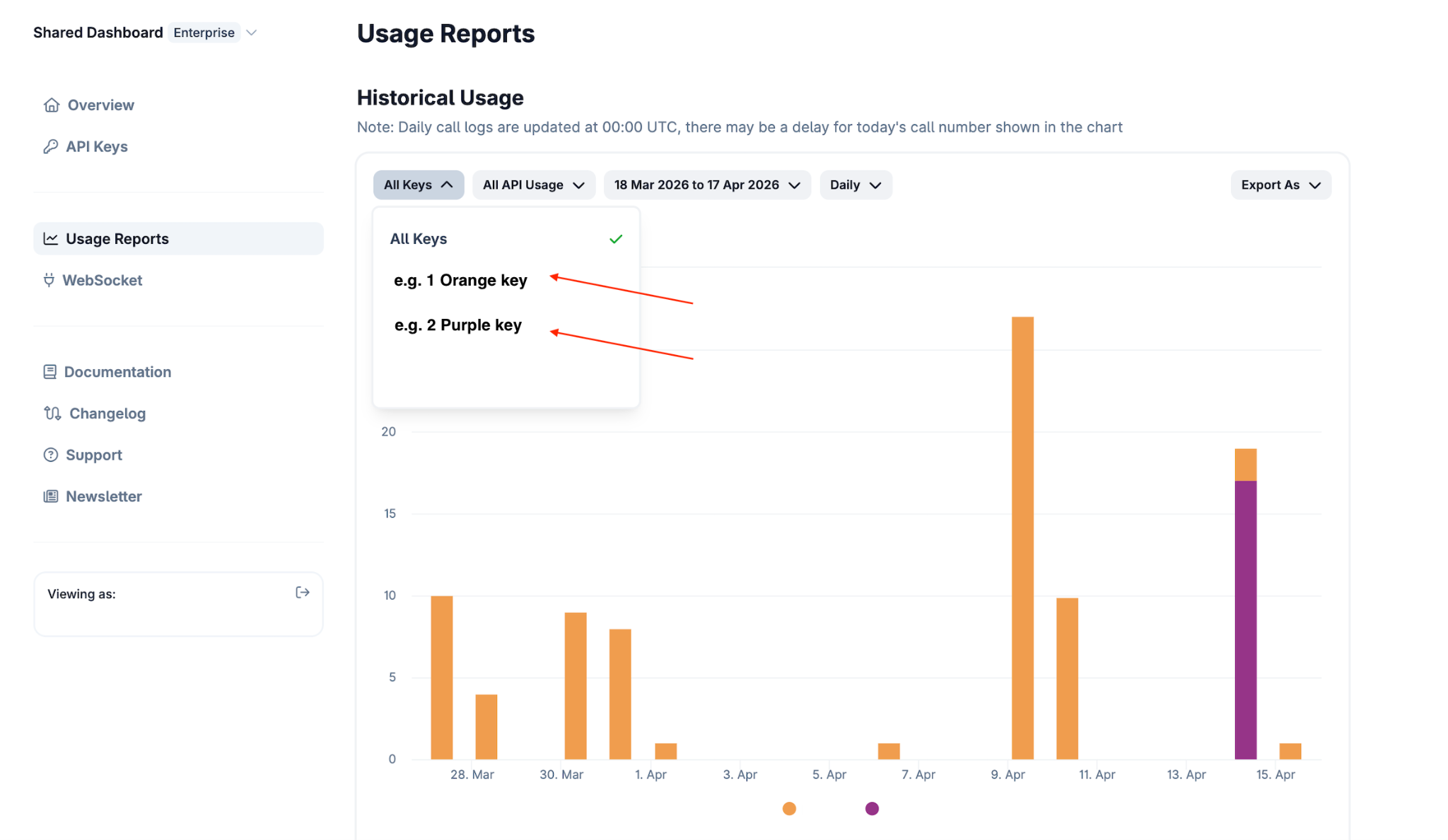
By default, the Historical Usage chart in the Usage Reports tab will display your combined consumption across all API keys.
To check the specific usage of an individual API key:
- Locate the filter options at the top of the report.
- Select the specific API key label from the dropdown menu to isolate its data
Need Help?
If you have further questions or encounter issues, please submit a ticket at our Support Center.